Using the dashboard
The dashboard is Canyon’s web app, at the address Canyon runs on. A menu down the left holds Fleet, Guardrails, Audit and Settings. Guardrails is shown to admins only. Where people sign in, the foot of the menu holds your name, your role (“Admin”, “Security responder” or “Member”) and “Sign out”. On a narrow screen the menu becomes a bar across the top with a menu button.
The fleet is the list of every app in your org.
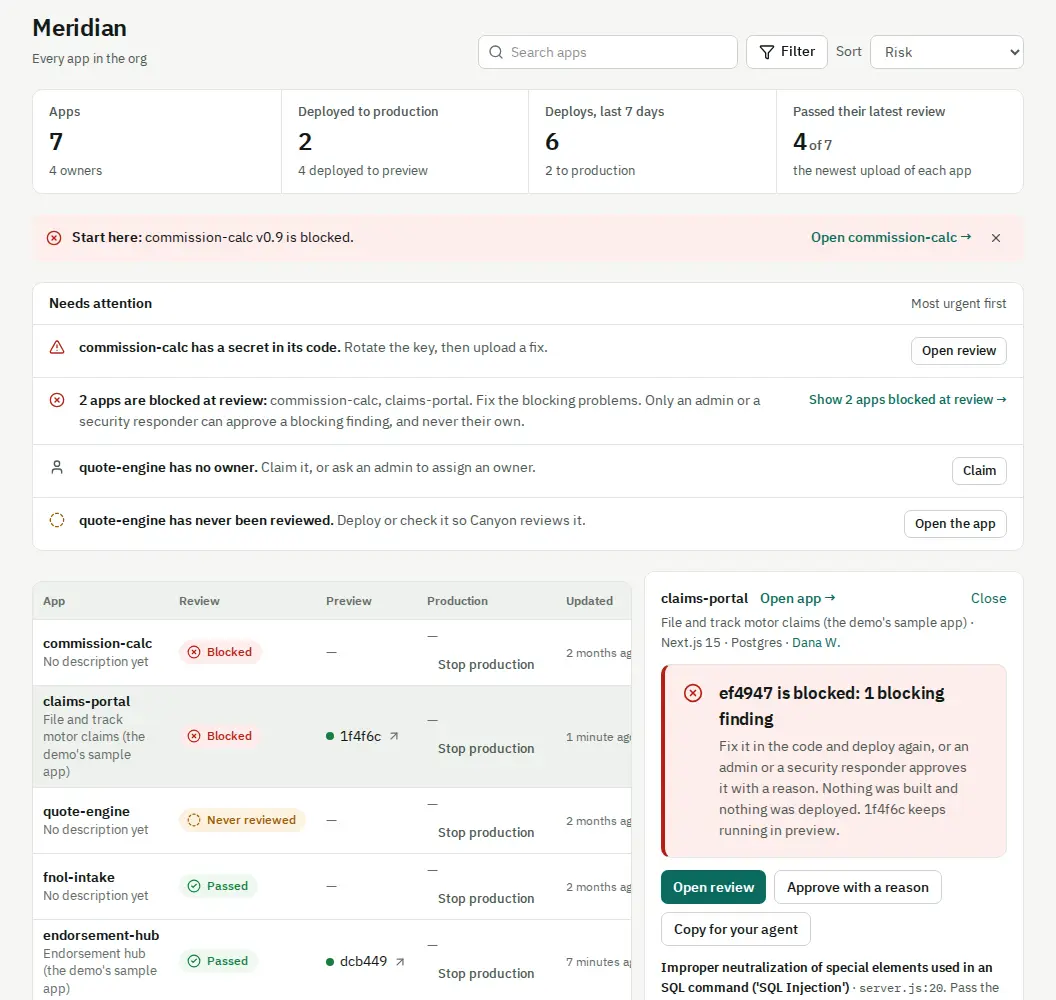
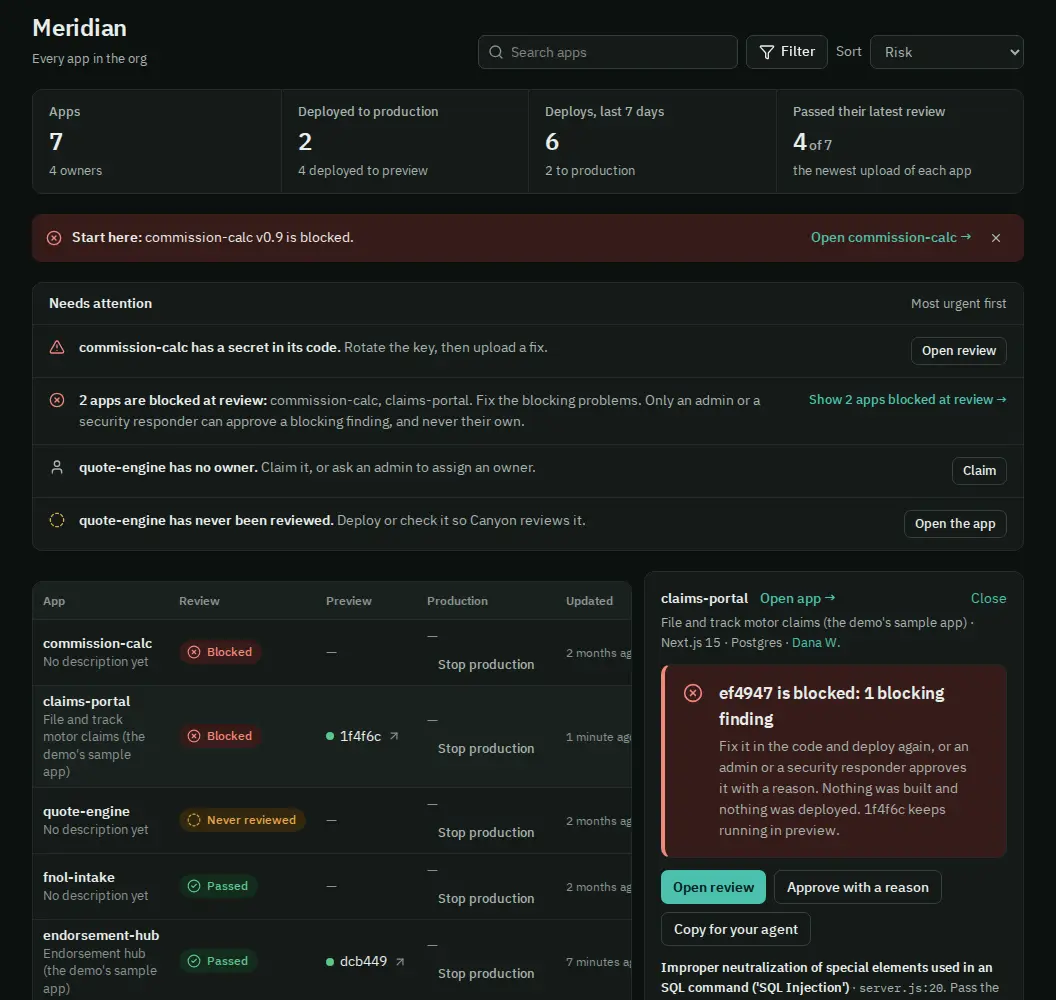
An admin’s counts and lists cover the whole org; a member’s cover their own apps, and their list is called “Needs you” rather than “Needs attention”. The list can say:
- apps with a secret in their code: rotate the key, then upload a fix;
- apps blocked at review: fix the blocking finding, or have it approved;
- apps whose last run failed: the run says why;
- apps whose blocking finding was approved: check the reason still holds;
- apps with no owner: assign one, or claim it;
- apps never reviewed: deploy or check it so Canyon reviews it.
“Only apps that need you” also picks apps waiting on your decision: a patch asking to go to production, or a destination refused on its outbound allowlist that nobody has allowed or dismissed.
The list. Where people sign in, an Access column says who can open each app, and a filter picks by it. “Filter” also has “Only apps that need you”. Security responders and admins see Stop production on each app’s row, and Lift the hold on an app whose production is held (Stopping production).
The details panel. Click a row to open its panel beside the list. When something blocks the app,
“Copy for your agent” copies the problem for a coding agent. “All activity” opens its audit trail. On
a wide screen, with the keyboard in the list, j and k move between rows, Space opens or closes
the panel, Enter opens the app whose panel is open, and Esc closes the panel.
Recent activity. Under the list, the org’s latest deploys, reviews and promotions, with failures from the last 24 hours first. “Open audit” opens the audit trail.
An app’s page
Section titled “An app’s page”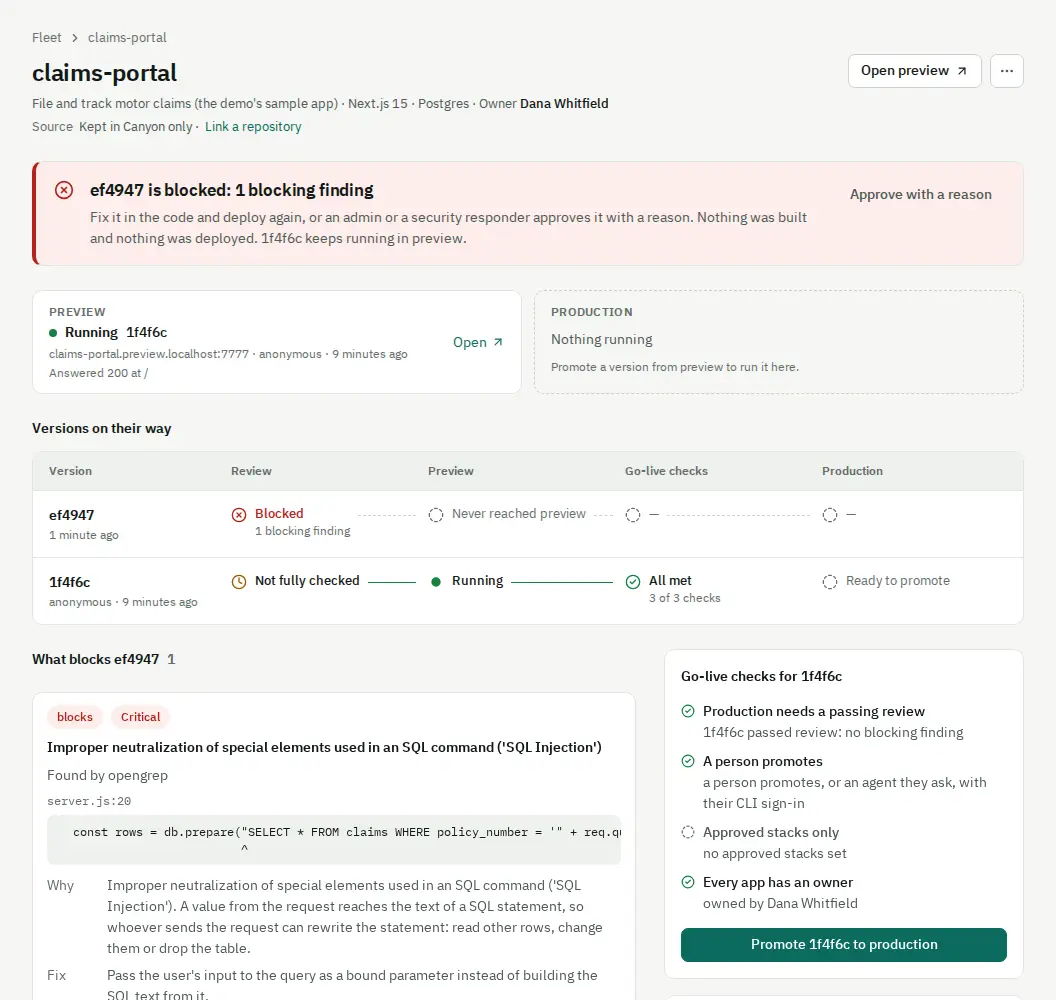
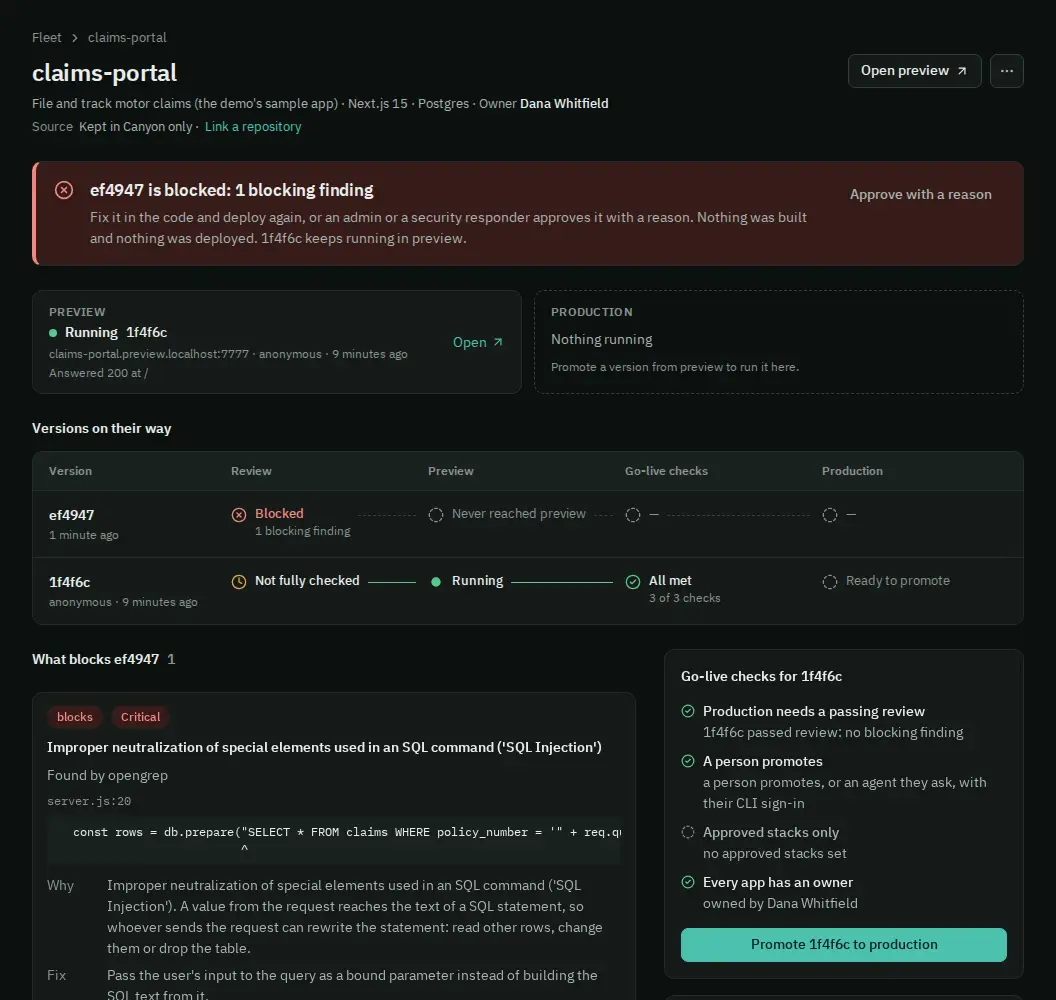
The “⋯” button (“More actions”) holds “Take preview offline”, “Take production offline” and, for the app’s owners and admins, “Rename…” and “Delete app…”. Further down the page:
- Review: what blocks comes first. What doesn’t block waits behind “Doesn’t block”. See Fix or approve a finding.
- Go-live checks for the version in preview: the rules checked before production, with Promote. Promote stays disabled while a check blocks. See Get to production.
- What Canyon checked: what this review ran.
- Who can open it, where people sign in: who the app is shared with. Its owners and admins share it and answer requests here. See Share an app.
- History, closed until you open it, with four tabs: Versions, Reviews, Secrets and Activity.
Someone without access to an app who opens its link sees “You don’t have access to” the app, and an “Ask for access” button.
Settings
Section titled “Settings”Settings has six tabs. An admin sees all six; a member sees five, without GitHub.
- Organisation: the organisation’s name.
- People & sign-in: who may sign in, who administers Canyon, the groups claim, and the production approval switch. See First boot and sign-in.
- App hosting: on Kubernetes, the front door: “The front door is how people get to an app on this Canyon: the address it answers at, and who signs them in before the app sees them.” How people reach apps explains the choices. On a Canyon that runs apps on Docker, there is nothing to set here.
- AI review: “AI review is on” when an AI model is set up on this Canyon, on Anthropic, OpenAI, or a gateway in front of either. Otherwise it is off, and the scanners still run.
- GitHub: connected GitHub organizations and their repositories. Shown to admins only. See GitHub.
- Outbound (beta): whether apps’ calls out go through Canyon, and what they may call. Every member reads it; an admin changes it. See Outbound.
Admins change these settings. Members see them read-only.
Approve a promotion
Section titled “Approve a promotion”When “Production is approved in the dashboard” is on, canyon deploy --env prod gives a link
instead of promoting. The link opens a page such as “Promote claims-portal to production?”. It shows
who asked and when, what is in production now, and what goes live. “Approve” promotes it and “Deny”
stops it. If something blocks the version, the page says “This can’t go to production now” and why.
An owner or a contributor of the app, or an admin, approves it, signed in to the dashboard. A request expires after 24 hours. If preview runs another version before it is approved, ask for a new one from the CLI.
Approve the CLI
Section titled “Approve the CLI”canyon login sends you to “Sign in to the Canyon CLI”. Check the code matches your terminal, then
click “Approve” or “Deny”. See Deploy on your company’s Canyon.