The audit trail
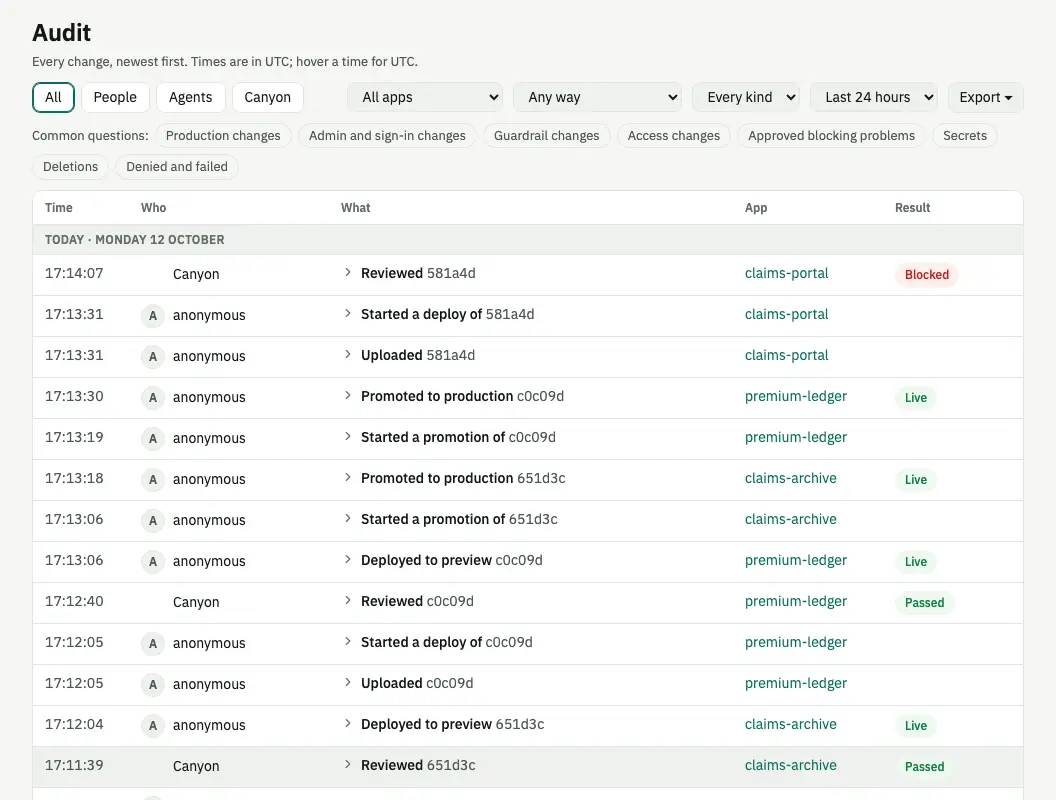
Canyon records who did what, when and how, in its audit trail. Audit, in the menu down the left of the dashboard, opens it, newest first. Times are in your browser’s time zone; hover a time for UTC.
What is recorded
Section titled “What is recorded”Every row is one of three kinds. The Kind filter names them:
- Changes: anything that changes the org or an app:
- creating, claiming and deleting apps;
- uploads and pushes;
- starting a review, a deploy or a promotion, and approving or denying a promotion;
- approving a blocking finding, with its reason;
- setting and removing secrets;
- sharing an app, asking for access, and dismissing a request;
- declaring and deleting databases;
- every change to the org’s settings, its rules, its custom rules, an app’s own stricter rules, the scanner credential, the front door (how people reach apps) and the GitHub App;
- finishing setup, and signing someone out everywhere.
- Access: sign-ins, sign-outs, refused sign-ins, requests Canyon refused, and reads of an app’s logs.
- Outcomes: what came of the work:
- each review’s result, with its blocking and advisory counts;
- builds that failed, apps that didn’t stay up, apps this Canyon can’t build, and builds the cluster had no room for;
- deploys to preview, and databases made ready;
- under hand-off, your own platform’s reports that a release is live or removed.
A change to the org’s settings records each value before and after.
Who did it
Section titled “Who did it”Every row names who acted, as one of three kinds. The Who filter picks them: “All”, “People”, “Agents” or “Canyon”.
- People: someone signed in, in the browser or from the CLI. A coding agent working through a person’s CLI sign-in is recorded as that person, with “The CLI” under Via.
- Agents: callers that aren’t a person. A push that arrives through Canyon’s GitHub App is recorded under the GitHub account that pushed it. Under hand-off, your own deployment platform’s reports are recorded as your organisation’s platform.
- Canyon: Canyon’s own steps, such as a review’s result or a build that failed.
How it was done is its own filter, Via: “Any way”, “From the dashboard”, “From the CLI”, “From GitHub”, “From the platform” or “Canyon itself”.
Who sees what
Section titled “Who sees what”- Admins see every row: “Every change, newest first.”
- Members see “Your apps’ changes and your own sign-ins”: the rows of apps they own or work on, and their own sign-ins, sign-outs and refusals. An app’s access requests, who it’s shared with, and who was refused on it are shown to its owners and admins alone, so a contributor doesn’t see them, even a refusal of their own on an app they don’t own.
- Security responders also see the stops and lifts of production holds they made.
Click a row to open its record: when, who, role, via, the action and the event’s id. The session it came from and the address it came from are shown to admins only. A member sees “shown to admins” in their place.
Filters
Section titled “Filters”Every filter is part of the page’s address, so a link to the page opens the same view.
- Who, Via and Kind, as above, and App.
- Time range: “Last 24 hours”, “Last 7 days” or “Last 30 days”.
- Common questions: one click for a saved set of rows. “Admin and sign-in changes” and “Guardrail changes” are offered to admins only.
A custom rule’s “History” link opens every change to that rule, whatever the time range.
The first page checks for new rows every two seconds. New rows wait in a bar above the table, such as “3 new events · Show”, so nothing moves while you read.
Export
Section titled “Export”“Export” downloads every row the current view selects, as “CSV” or “JSON”. The file is made in your browser. “Copy link to this view” copies the page’s address.
Refused sign-ins
Section titled “Refused sign-ins”When Canyon turns away someone your identity provider signed in, because they aren’t allowed or Canyon is still being set up, the trail records it as “Sign-in refused”, with the address they used and why:
- “not on the allowed domains or emails”: the address is on neither sign-in list in Settings › People & sign-in.
- “Canyon is still being set up”: until the first admin finishes setup, only the admins named when
Canyon was installed (
CANYON_ADMINS) can sign in. See First boot and sign-in.
These rows are under Access, and under “Denied and failed”.
Refused requests
Section titled “Refused requests”A request Canyon refuses is recorded too, as “Tried to” and what it tried, with why. For example:
- a member trying to change the org’s settings reads “admins only”;
- a change only a person may make, attempted by something else, reads “people only, not agents”;
- a rule change from the CLI while production is approved in the dashboard reads “in the dashboard only, not from the CLI”.
On an app’s page
Section titled “On an app’s page”An app’s History has an Activity tab: the same trail for that one app. In the fleet (the dashboard’s list of apps), an app’s details panel has “All activity”, which opens the trail filtered to that app.